
User Settings
In User Settings, you can personalize your experience by updating your avatar, account details, and preferences. You have the option to choose a color or upload a custom image for your avatar, which will be visible to others in your organizations. You can also easily update your personal information, like your password, and adjust preferences such as how documents open and how the page looks. These settings allow you to tailor your experience to suit your needs.
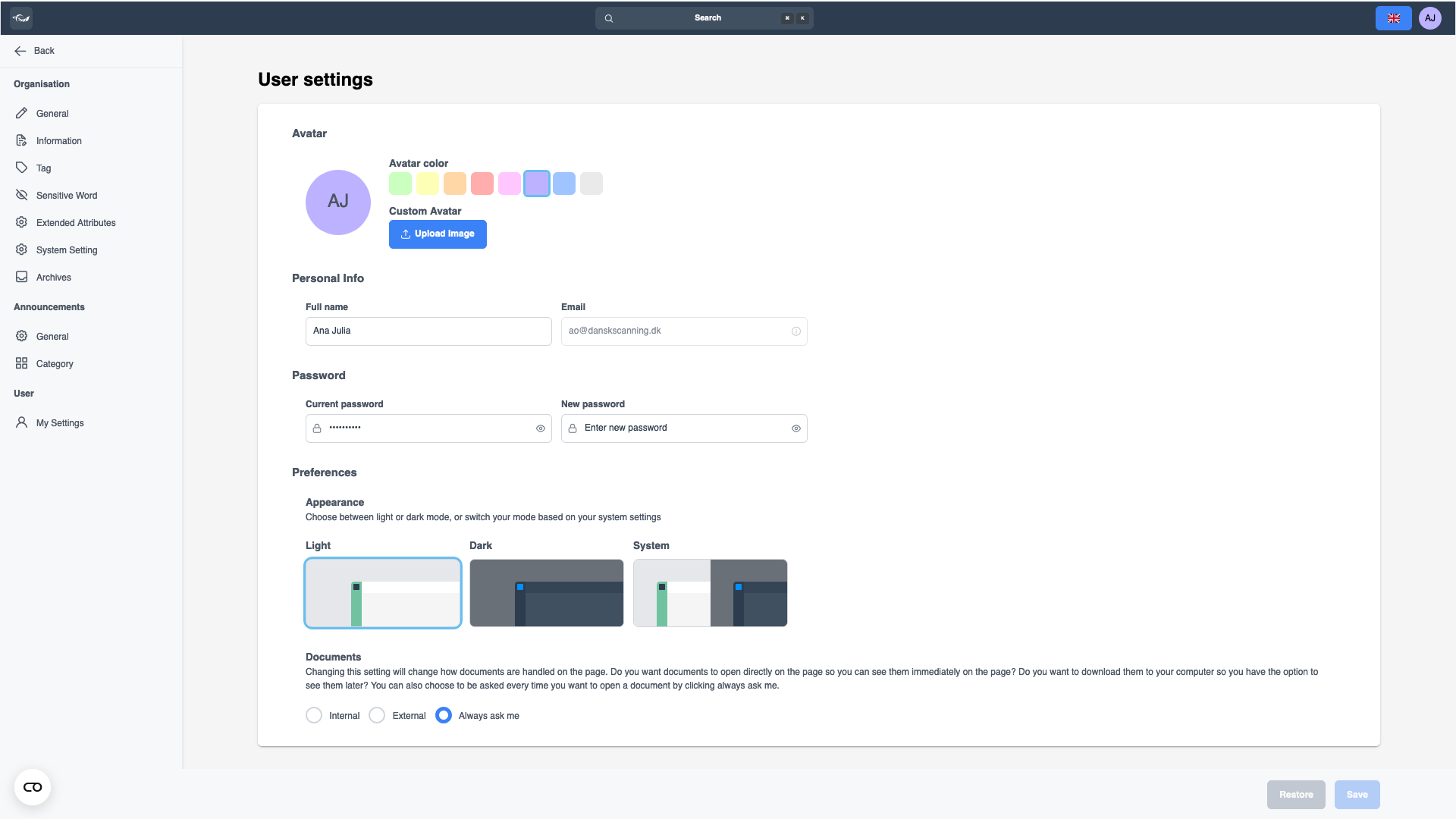
Change Avatar
You can personalize your avatar by choosing a color for the circle around your initials, or you can upload a custom picture. Your avatar will appear in the top right corner of the screen and will be visible to others in any organization you're part of.
Click on a colour square to choose the colour surrounding your initials.
Click here to keep the changes.(1)
Alternatively:
Click here to select a local image for your avatar.
Click here to keep the changes.(1)
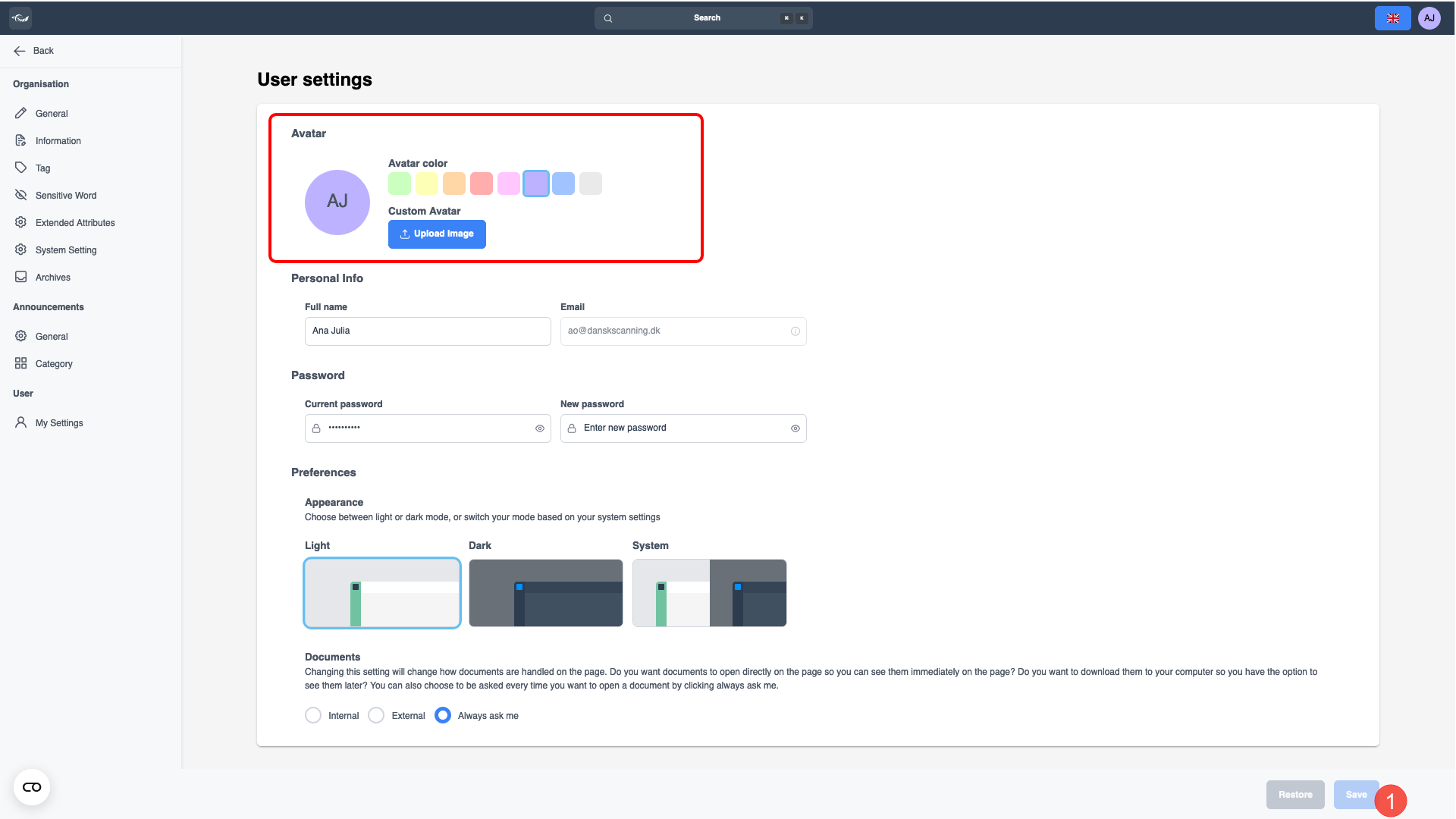
Edit personal information/account information
You can easily update your personal details or account information here. Keep in mind that while you can change your password, your email address can’t be updated directly. If you need to change your email, simply contact Dansk Scanning for assistance. The name you choose will appear as initials in your logo icon unless you selected a custom avatar picture.
Click in any of the fields that you need to be changed.
Fill in the information.
Click “Save” to keep the changes. (1)
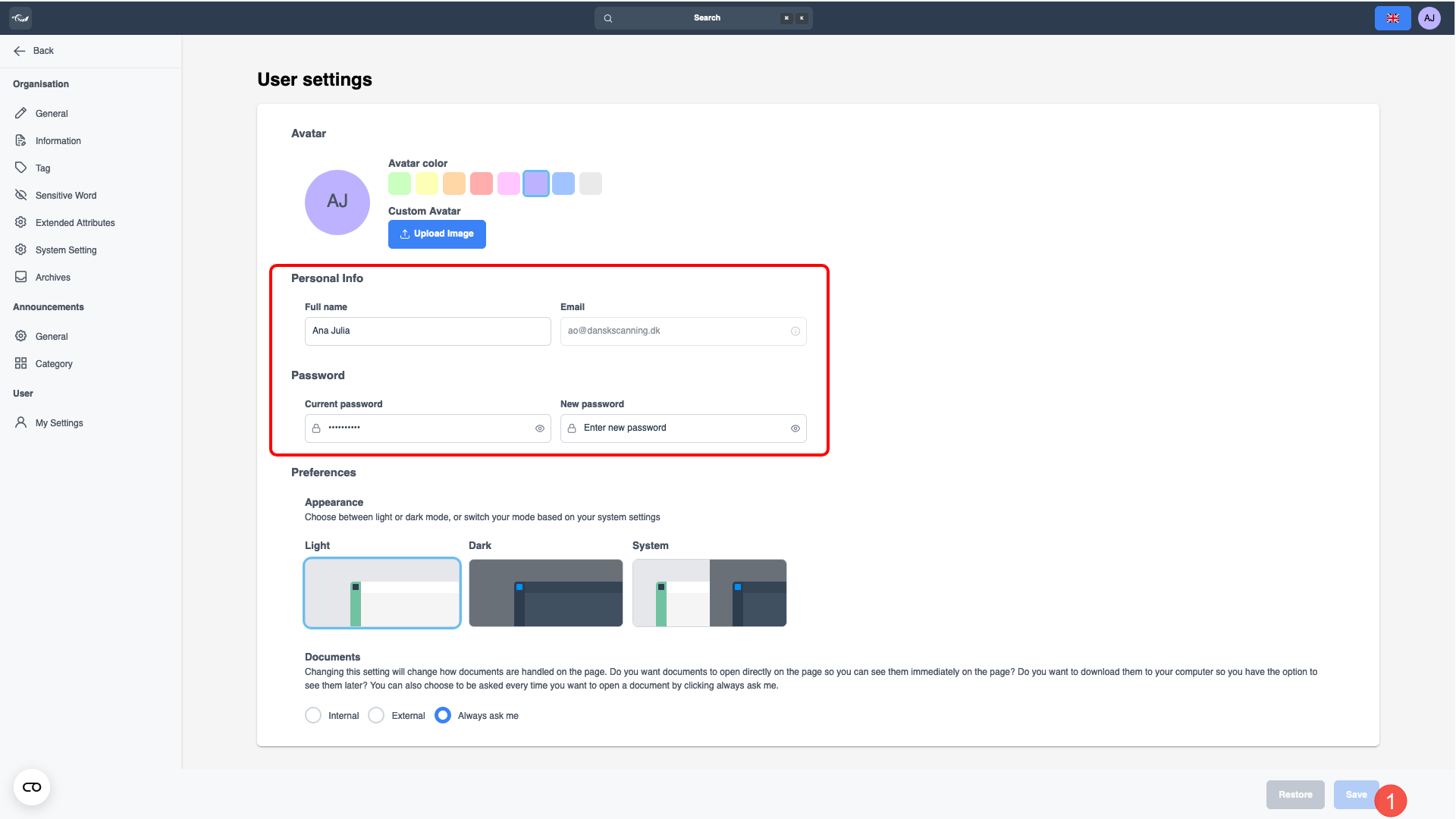
Edit preferences
Your preferences control how certain elements appear and behave for you. There are three available themes to choose from, which determine the overall look and feel of the page. The “System” theme automatically adjusts to match the settings you’ve selected on your computer.
When it comes to documents, you can choose how they’re handled when you open them. Would you prefer to view them directly on the page as soon as you click? Or would you rather download them to your computer and view them later? If you’d like to decide each time, you can opt for the “Always ask me” option.
Image 1
Click on the preferred theme.(1)
Select this (2) if you want the documents to open on the page you are using or this (3) if you want the documents to be downloaded on your computer when opened.
Click here to keep the changes. (4)
Alternatively:
Image 2 (PUT IMAGE OF THE POP UP)
Select this option to choose between the two at that moment. (5)
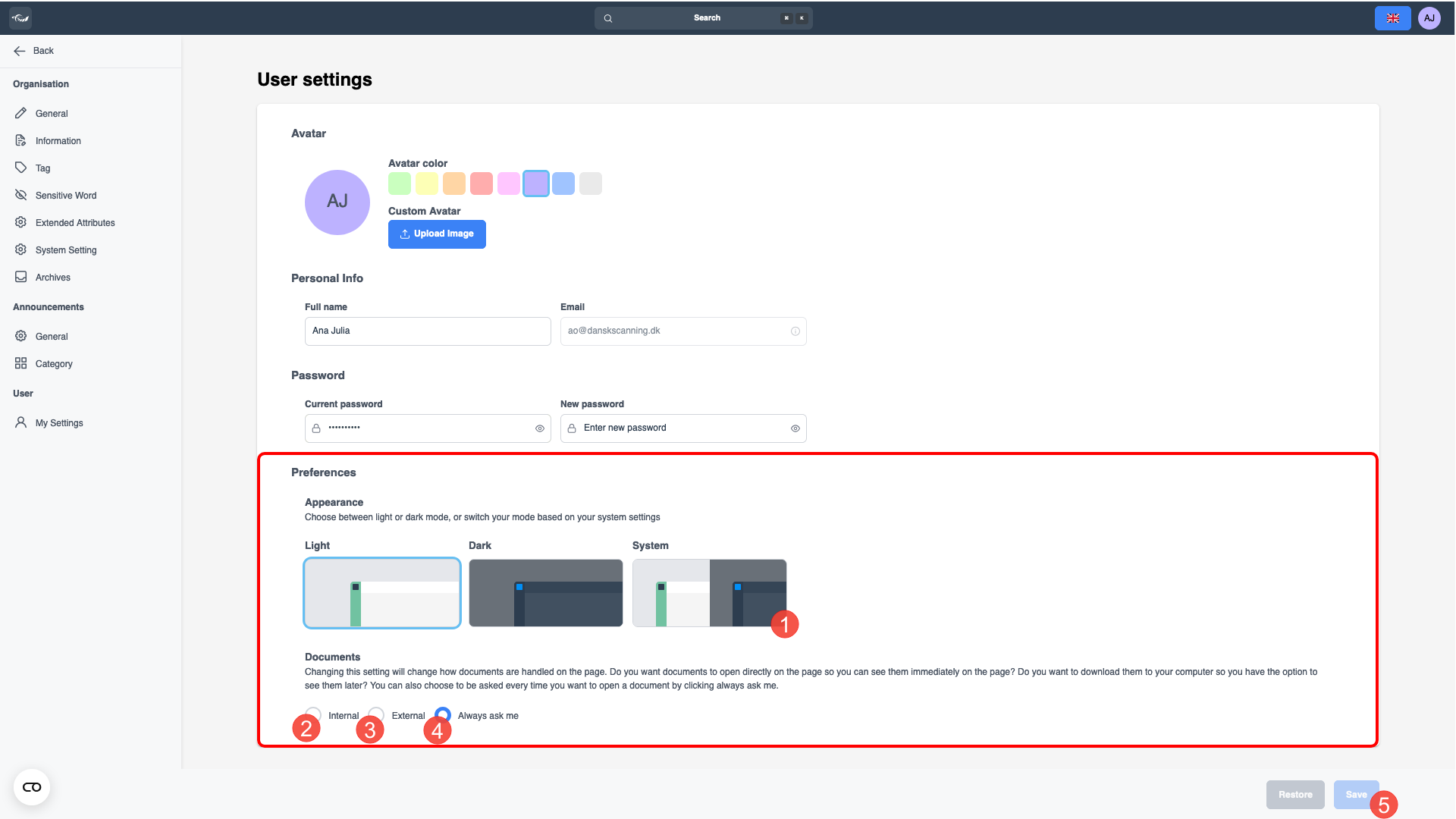
Image 1
Cookies settings
Adjust your cookie settings to customize your experience. You can select which cookies to allow based on your personal preferences.
Cookies are small data files that websites store on your device to enhance your browsing experience. They help sites remember your preferences, support essential features, and ensure a smoother, more personalized interaction. Before adjusting your cookie settings, it's helpful to know what types of cookies are used and why they matter.
Click on here (1)
Choose the cookies you want to enable. (2)
Click here to set the selected cookies (3) or here to enable all cookies. (4)