Side Menu
The Side Menu helps you quickly access key features and navigate through the app. You can customize it by adding or removing elements, minimizing it for a cleaner view, or resizing it to fit your preference.
Add or remove elements
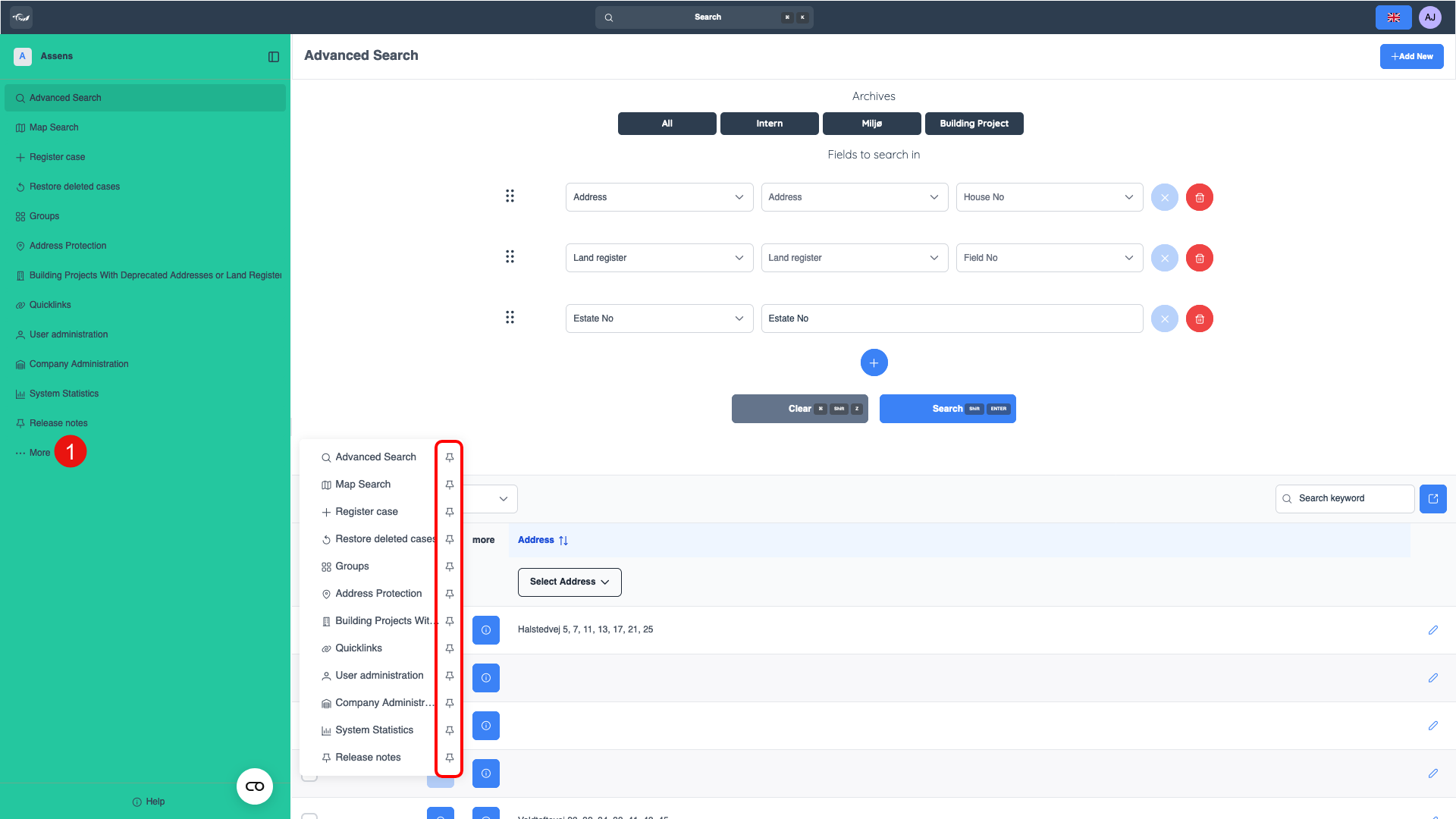
You have control over what appears in your Side Menu. To customize it, click on the 3 dots to reveal all available menu options. If there’s something you frequently use, click the pin icon to add it to your menu for easy access. Need to declutter? Just click the pin again to remove it. This way, you can keep only the tools you use the most.
Click here to open all the menu options. (1)
Click on the pin icon to add the option to the menu. Click the same pin again to remove it.
Minimize and resize
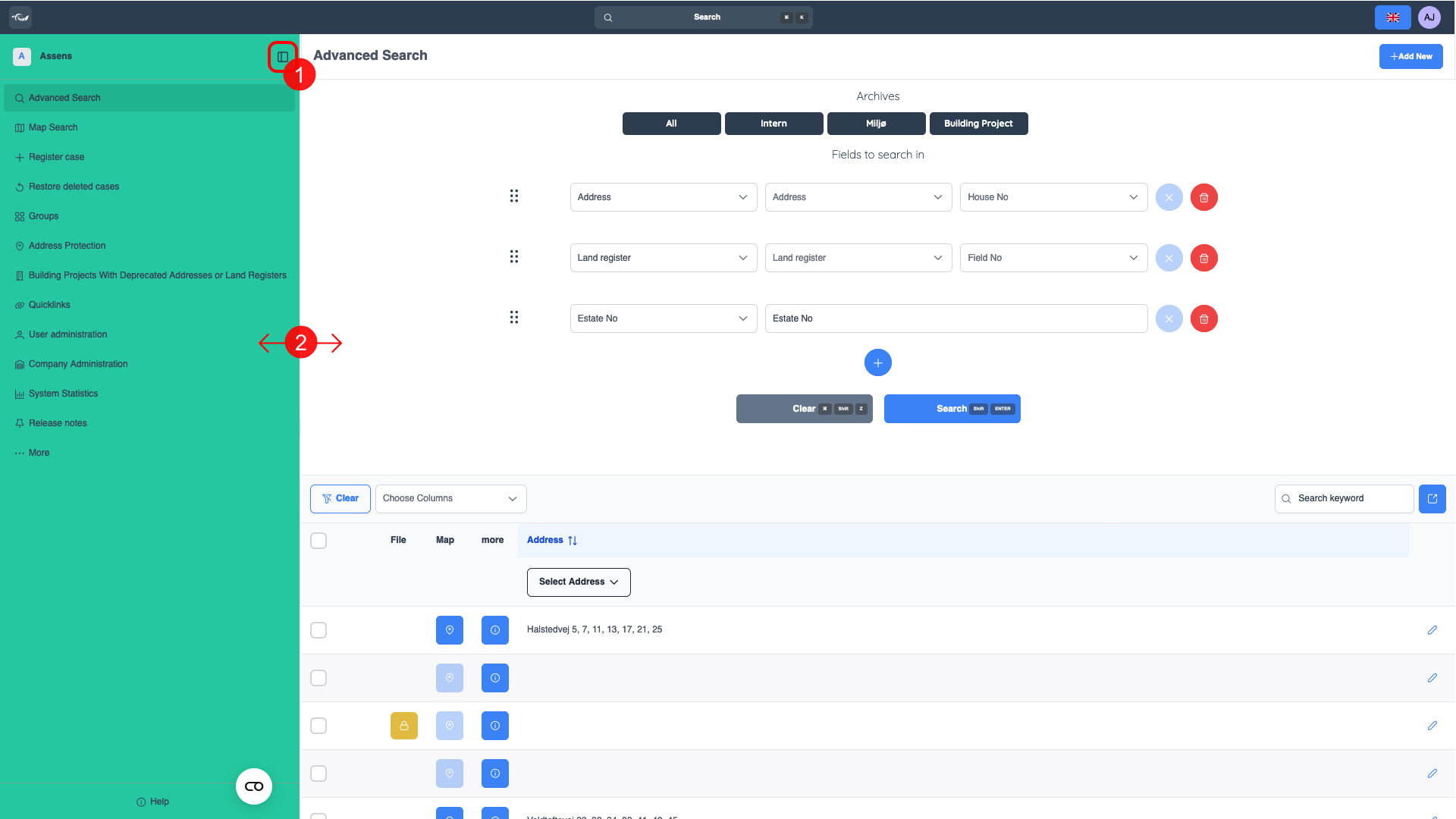
If you prefer a more compact layout, you can collapse the Side Menu by clicking the button in the top right side of the side menu. For even quicker access, press “Q” on your keyboard to toggle it.
Want to adjust the size? Simply drag the edge of the menu to resize it to your liking. Whether you need more space or a streamlined view, you can shape the menu to fit your workflow.
With these customization options, the Side Menu adapts to how you work, making navigation more efficient and tailored to your needs.
Click here to minimize/collapse the side menu.(1)
You can also press “Q” as a shortcut on your keyboard.
Drag the edge of the menu to the desired position. (2)